
Choose the locker-room video you actually want
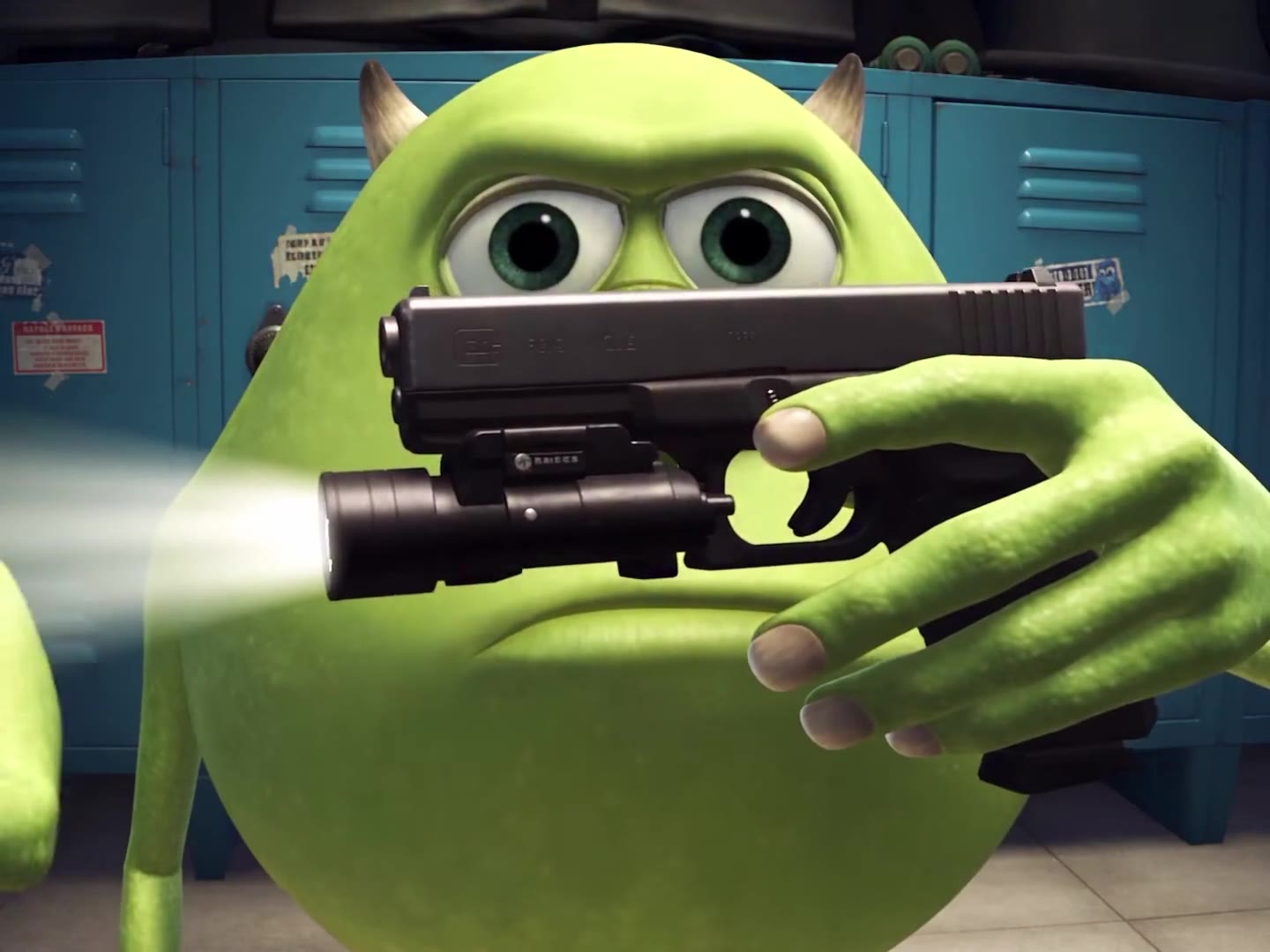
Mike Wazowski AI videos cover several different scenes. This template uses the green, two-eyed character in front of blue lockers, switching between a pistol with a bright flashlight, a butterfly knife, handcuffs, a spray can and magazines. Watch the full demonstration before choosing it; the prop changes are part of the same prepared sequence.
The scene is a character-loadout montage: one performer handles a series of props in the locker room. You get the complete scene shown in the preview, with its existing order of actions. Choose this template when that sequence fits the video you want to make.
Give Image 1 a single, readable identity
Upload one JPEG, PNG or WebP, up to 10 MB and at least 256 × 256 pixels. Choose a clear face, body design and visible outfit. A full-body character reference helps define proportions and clothing that a tightly cropped face cannot show. Keep the subject separate from a busy background or other people.
The uploaded image decides who performs the scene. A Mike-style character reference asks for that character; a photo of yourself asks to replace the green performer with your appearance. Uploading a person does not select a separate green-monster filter. The prepared instructions use the reference for the face, hair, body and outfit, with unseen details completed by the model.
Prepare a clear reference photo · Read the character-mapping prompt guide
Keep the props inside your chosen frame
The source picture lasts 11.041667 seconds, displayed as 11.04 seconds, and uses a 1440 × 1080 frame. Original framing preserves this 4:3 composition. The template quotes 12 started seconds; that rounding does not add an extra pose, prop change or frozen ending.
A square or vertical centered crop can remove a hand, flashlight or the end of a moving prop. Look at the entire sequence, rather than checking only whether the face fits in the first frame. Resolution is a separate choice: select 480p or 720p, then read the amount displayed for that setting.
Review the request before starting generation
Confirm permission to use the reference, check the selected image and review the credit quote. The demonstration is free to watch. A personalized video uses credits; opening the guide or preview does not render your uploaded character for free. Use the live studio and pricing page for current amounts.
If you purchase credits, return to the studio to review and submit the intended video. Keep the saved request or open My videos to follow it. When a connection drops or progress is uncertain, inspect that existing request before starting another generation with the same photo.
Check current credits and pricing · Find a saved video request
Review the whole MP4 with its sound
Check the identity across close views and cuts. Then inspect the fingers and contact with each prop, including moments when an object covers part of the face. Fast motion and changes between hands are harder to judge from a single still. AI output can vary even when the same reference is used again.
Listen to the completed file too. This template restores the prepared clip’s matching source track after visual generation. It does not create a new Mike Wazowski voice, speak your written dialogue or choose another soundtrack. Download the existing completed MP4 once you have reviewed both picture and sound.
Can I keep Mike Wazowski as the character?
The uploaded reference defines the performer. Use one clear character image for the appearance you want; the template does not supply a separate character-selection menu.
Is there a free personalized preview?
The public demonstration is free. This studio does not provide a separate free render using your uploaded photo; generation uses the displayed credit quote.
Can I generate only the knife moment?
The available source is the complete 11.04-second montage. There is no separate knife-only cut in this studio.
Reviewed against the EasyVideoAI studio on October 31, 2026. Check the live studio for current availability and the final credit quote.