
1. Start with the whole car in view
Open the Flying Car AI video generator. Use a JPEG, PNG or WebP no larger than 10 MB and at least 256 × 256 pixels. Show one car from the side or a three-quarter angle, leaving room around the wheels, roof and bumpers.
Even daylight and a simple background make the body shape easier to read. A dark vehicle at night, glare on the paint or a second overlapping car can obscure the details the model needs. You do not need a video of the real car performing a stunt.
2. Choose Ramp Flip or Side Kickflip
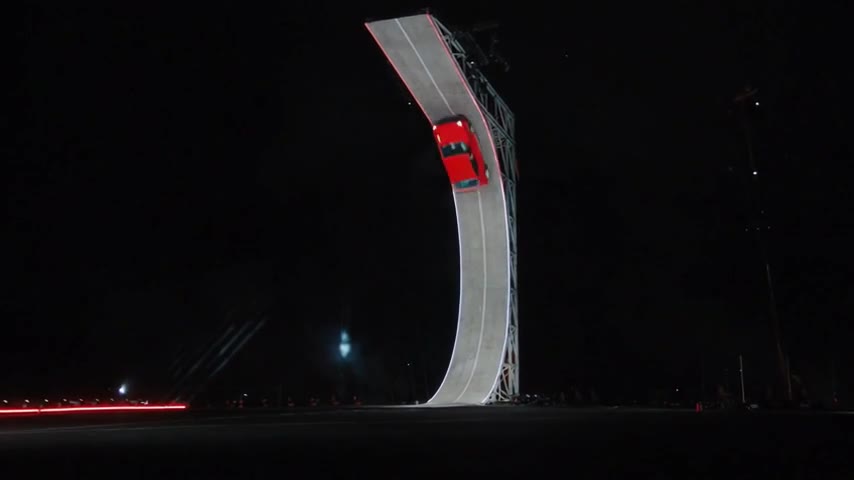
Ramp Flip shows a curved wall, inverted turn, airborne rotation and vapor landing. Side Kickflip uses a fixed wide side view of the car launching from the right, rolling over a parked vehicle lineup and landing on the left. The reference guides the camera and action; your photo guides the vehicle’s paint, shape, wheels and lights. Each stunt has an independent AI demonstration and completed case, using a turquoise coupe or red hatchback.
Choose one of the two stunt cards before generating. Switching the card updates the demonstration, exact private reference and credit quote. There is no dedicated product-ad mode. Your car may vary from the examples because a still photo does not reveal its underside or every body panel.
3. Choose quality and inspect the flight path
Choose 480p or 720p. Original preserves the full landscape scene. Square and 9:16 options use centered crops, which may cut off the ramp or the car near the edges. Check the preview outline through the entire action before choosing a vertical post.
Ramp Flip contains approximately 8.03 seconds of picture and is quoted as nine started seconds. Side Kickflip contains 4.77 seconds and is quoted as five. The credit quote uses started seconds and the selected resolution; the complete displayed quote is what you confirm. It does not use the pricing or credit packs of another Flying Car AI website.
4. Review the quote and submit once
Confirm permission to use the photo, review your image and settings, then confirm the displayed credits. Buying credits is separate from starting the video. If a connection is interrupted, open your saved request or My videos before creating another attempt.
The result remains private. A result-page refresh checks the existing task; it does not start another paid generation.
5. Review the car and generated sound
Watch the entire clip. Compare the paint, roof, headlights and wheel positions at the opening, upside-down moment and landing. Fine text, plates and reflections may change. Check that the vehicle remains one solid body and the final crop keeps the stunt visible.
Listen for generated movement, air and landing sounds. This template’s reference is silent, so the sound is generated rather than restored from an original soundtrack. Download the MP4 and identify the imagined stunt as AI-generated when sharing.
Reviewed against the EasyVideoAI studio on October 26, 2026. Check the live studio for current availability and the final credit quote.